> ## Documentation Index
> Fetch the complete documentation index at: https://docs.factorypulse.app/llms.txt
> Use this file to discover all available pages before exploring further.
# Continous Improvement Quickstart
> Start using our CI manager in minutes
Before you start, make sure you have your [org levels](/accounts/org-levels) and [org set up](/accounts/org-setup) so you can assign projects to the right groups.
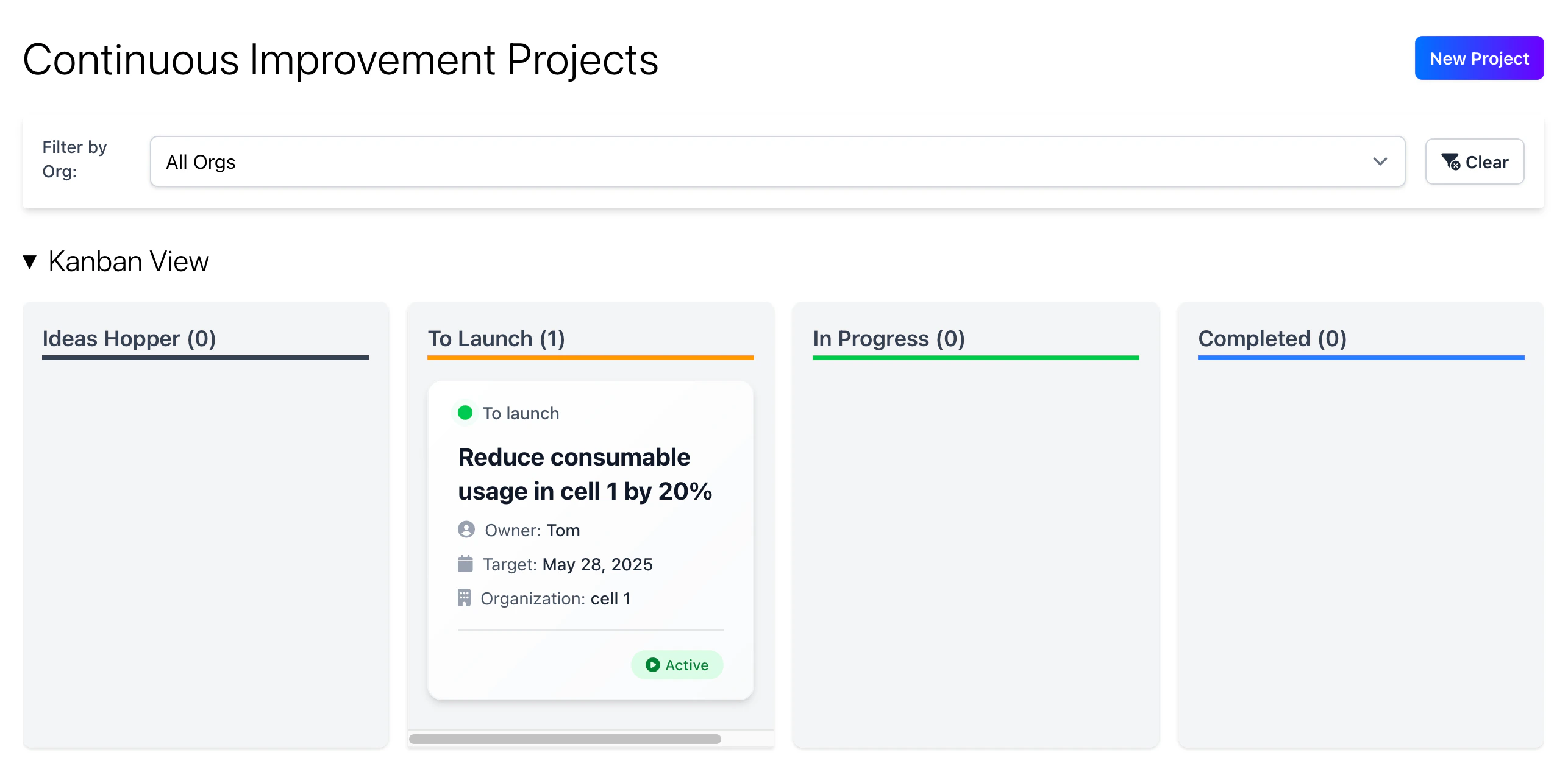
Managing CI projects inside FactoryPulse is really simple. On the CI home page you can see all of the projects in both a kanban and gantt view, filter by organisation, or create a new project.
 ## Creating a new project
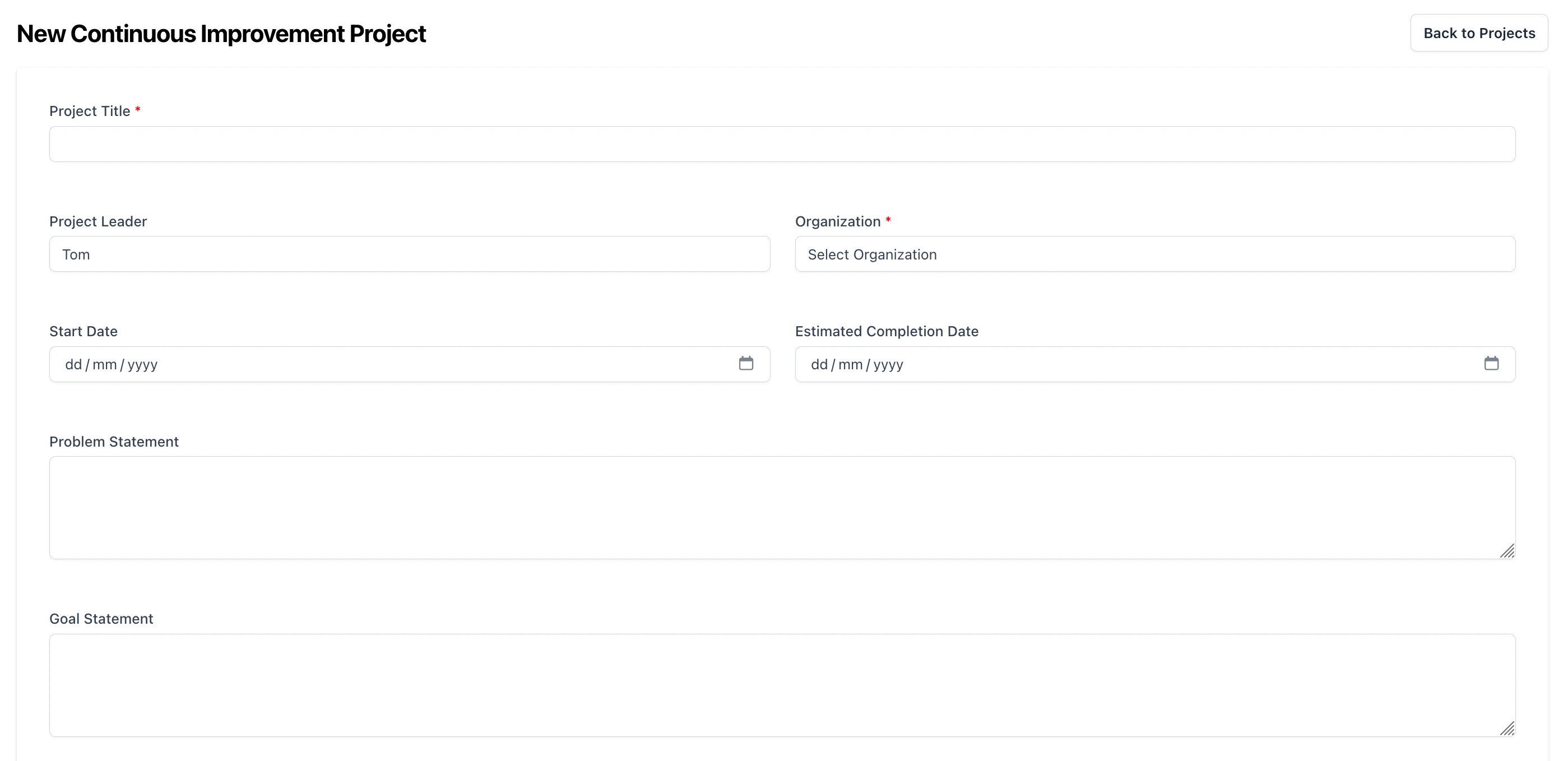
To create a new project, just click on the "New Project" button at the top of the CI page. This will open a page where you can enter the project charter, to get started you only need to enter a title, leader and organisation. The rest of the charter can be populated later if you need to. To view the project on the Gantt chart you do need to enter projected started and end dates.
## Creating a new project
To create a new project, just click on the "New Project" button at the top of the CI page. This will open a page where you can enter the project charter, to get started you only need to enter a title, leader and organisation. The rest of the charter can be populated later if you need to. To view the project on the Gantt chart you do need to enter projected started and end dates.
 ## Viewing a project
To view the detail of a project, just click on the project card. This will open a page where you can see the project charter, see tasks and see the latest updates
## Viewing a project
To view the detail of a project, just click on the project card. This will open a page where you can see the project charter, see tasks and see the latest updates
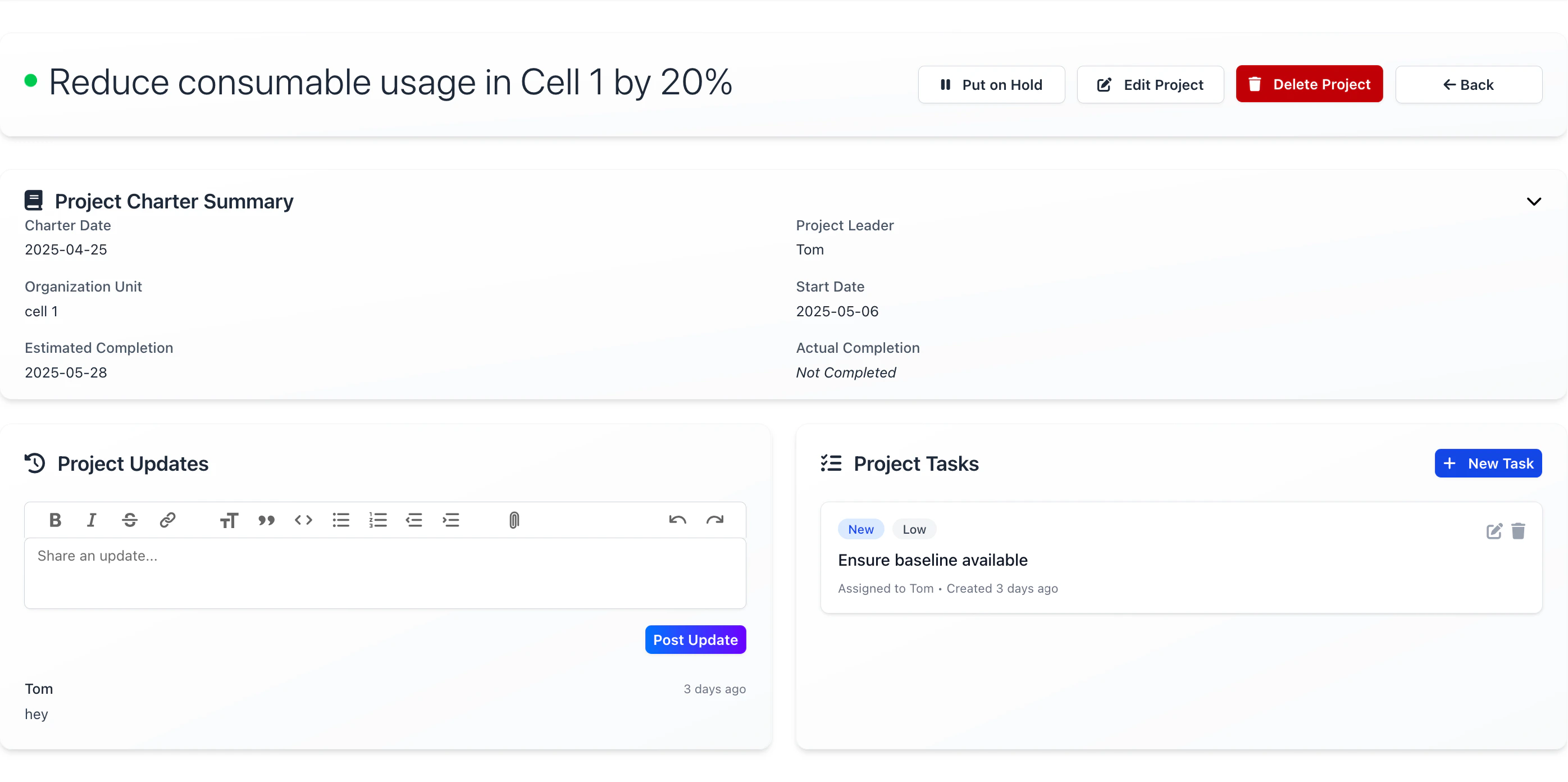 From here you can add the latest updates to keep everyone in the loop. Add actions to the project to help progress the project and edit the project charter. You can also flag the project as on hold with the hold button.
To edit the charter, just click on the edit button at the top of the charter section.
## Changing project status
To change the status of any project, you can just hover over the card in the kanban view and click the arrows to move the card to the next status.
From here you can add the latest updates to keep everyone in the loop. Add actions to the project to help progress the project and edit the project charter. You can also flag the project as on hold with the hold button.
To edit the charter, just click on the edit button at the top of the charter section.
## Changing project status
To change the status of any project, you can just hover over the card in the kanban view and click the arrows to move the card to the next status.